Import time series
Import time series
This section refers to Ordinary time series only. Ensembles will have to be imported using the Import from dfs0 tool.
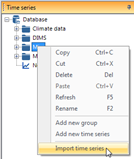
the disk to the database, right-click on the group to which the series shall be imported and select Import time series from the context menu.
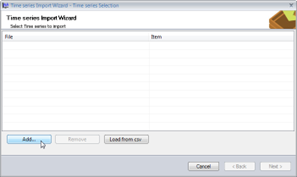
The time series import wizard opens.
The first page contains a list of the time series to be imported. Initially the list will be empty.
To add time series to the list, click the Add... button.
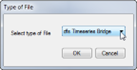
A new dialog pops up where the import format can be selected.
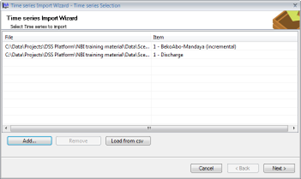
When OK is clicked, a file-open browser opens, and the user can select a file that will be added to the list.
This is repeated until the list contains all the time series that shall be imported.
Click next to proceed to the next step.
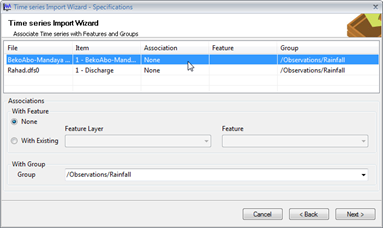
The next page contains a list of the time series that will be imported, along with the import settings:
Settings include:
- Associations to GIS features (Default: none)
- Group to import to (Default: The group that was selected when the wizard was started).
To edit the settings, select a time series in the table. The settings options below become enabled.
The properties for multiple time series can be set in one go by selecting multiple time series in the table (hold the Ctrl key while selecting).
Click next to proceed to the next step.
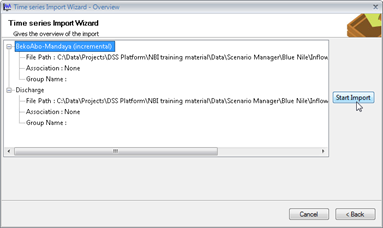
The last page contains a summary of the import settings.
Click Start Import to execute the importer.
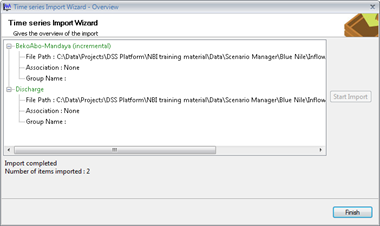
When the import is completed, the status is indicated by color in the list.
Items that have been successfully imported are marked by green color.
Click Finish to close the wizard.
Batch import of time series
This section refers to Ordinary time series only.
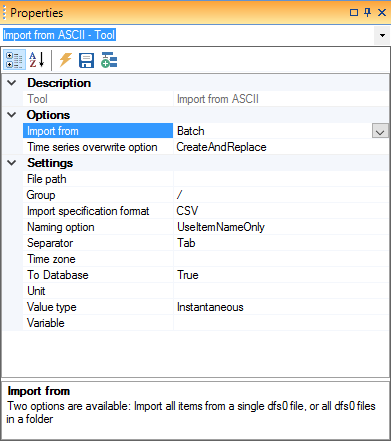
Import from DFS0 and Import from ASCII tools both offer a Batch import mode, allowing multiple files to be imported in one operation.
When selecting Batch the Import specification format can be either CSV or Spreadsheet, meaning a list of input specifications should come for either a comma-separated csv-file or a spreadsheet in the database.
In both cases the tabular information must include column headings EXACTLY like these for the import to work:
- File name
- Item no.
- Group
- Feature class (path)
- Feature (display attribute)
Other columns may exist but are ignored.
The first line (in the file or spreadsheet) contains the header.
An example is shown at the end of this section.
Each line in the file or spreadsheet contains a specification of which file and item to import and to which group in time series manager and optionally a feature class and feature to associate the file with.
The feature class field with the feature identifier must be selected as Display attribute for the feature class in GIS Manager for the association to be established.
Limitations/requirements for the import are:
- Batch specification
Feature class (path) and Feature (display) fields are optional. - CSV-file
The file must be comman separated. - File name
Extension must be either .dfs0 or .txt (case sensitive) for the respective tool. The file name should include the absolute path to the file. - Item no.
A positive value larger than or equal to 1 - Group
A path in Time Series Explorer starting with /. I will be created if it does not exist If empty the default Group set for the tool will be used. - Feature class (path)
A full path to an existing feature class in GIS Explorer. - Feature (display)
The value of the field selected as Display Attribuute for the feature class.
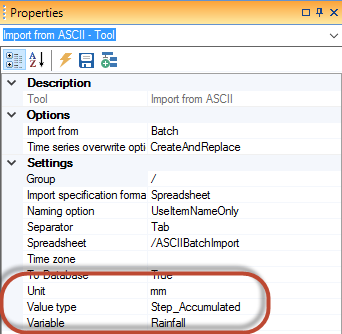
ASCII File import requires the Variable, Unit and Value type properties to be specified. These will act as default value for all the imported time series.
But it is possible to add one to more columns to the import specification and override these settings for the individual time series. The field headings are:
- Variable
- Unit
- ValueType
The possible values are the same as what is show in the drop-down boxes in the Properties dialog.
Unit depends on Variable, so if Variable is specified Unit should also be.
ASCII time series have some additional requirements:
- Files must have extension .txt (lower case).
- The header should have a field called Time holding date and time.
- The data is read following the line with field Time.
- Data can be comma- or TAB-separated.
- If Time series overwrite option is CreateAndReplace, item columns should have unique names. In case of non-unique names that last column of the non-unique name will be used.
- If Time series overwrite option is CreateButRename, non-unique columns/items will be renamed with an index suffix.
- If Time series overwrite option is DontCreate, non-unique items are handled like for CreateAndReplace, but if the target data series already exists in the database it will eventually be skipped.
- DateTime is parsed using Current Culture, which means regional settings are used, but using a dateimte in this format : yyyy-MM-dd HH:mm:ss, should ensure proper interpretation.
- Numbers should be with decimal point.
- All numbers are interpreted as values.
- A missing value should be indicated with an empty cell or a text that is not a number.
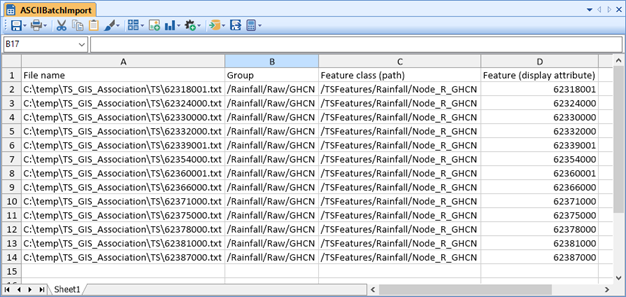
Example of a CSV-file for importing ASCII files.

Example of a similar spreadsheet import specification.