Configure the Database Server
Configure MS SQL Server
To allow MIKE OPERATIONS to connect to MS SQL Server, the following changes must be made to the Microsoft SQL Server configuration of the SQL Server to contain MIKE OPERATIONS databases.
- Allow SQL Server Authentication
- Allow remote connections
- Enable TCP/IP and specify TCP port
Allow SQL Server Authentication
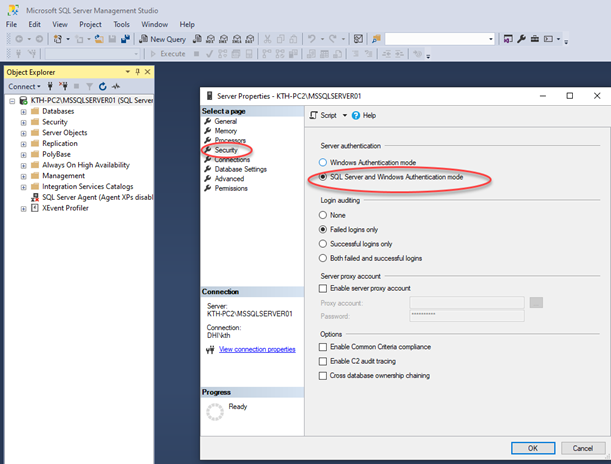
As login using Windows credentials is not supported by the Database
Manager Utility, it is recommended to use the sa user for maintenance
of the MIKE OPERATIONS databases.
To connect using the sa user, change the Server Authentication to
allow both SQL Server and Windows Authentication.
Allow remote connections
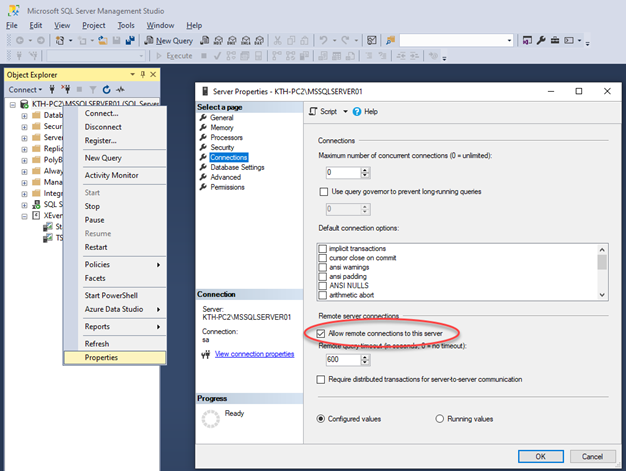
In SQL Server Management Studio, make sure that remote connections are enabled.
Enable TCP/IP and specify TCP port
Connection from MIKE OPERATIONS require a TCP port.
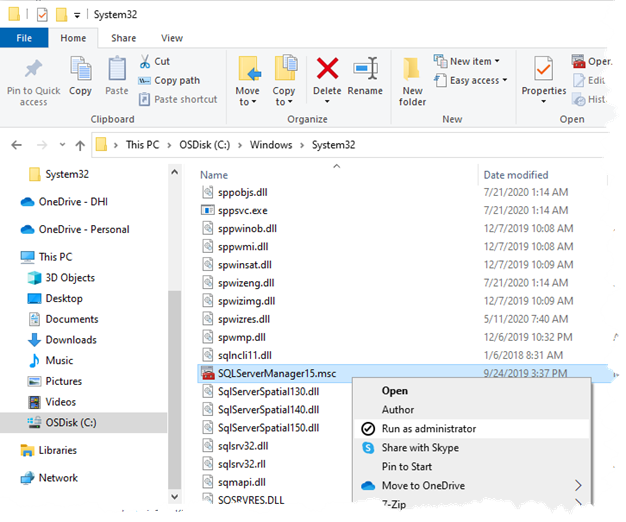
Start SQL Server Configuration Manager as an administrator. If a
shortcut is not available, SQL Server Configuration Manager can be found in C:\Windows\System32\.
In SQL Server Configuration Management, select the protocols node for the server to connect to and make sure that TCP/IP is enabled for the server.
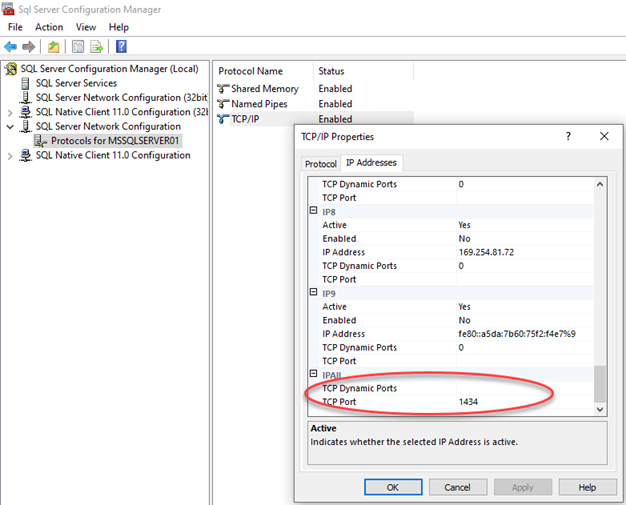
A port for accessing TCP/IP must be specified. Select the IP Addresses tab page and scroll down to the last category IPAll.
Clear the TCP Dynamic Ports property and specify the TCP Port.
Below, port 1434 is used.
After changing the settings of MS SQL Server, restart the server from SQL Server Management Studio.
Configure Azure Database for PostgreSQL
MIKE OPERATIONS support using Azure Database for PostgreSQL.
Azure Database for PostgreSQL is a relational database service provided by Microsoft Azure, based on the open-source Postgres database engine. It's a fully managed database-as-a-service offering that can handle mission-critical workloads with predictable performance, security, high availability, and dynamic scalability.
When using Azure Database for PostgreSQL, configuration of the service as well as bandwidth between the Azure PostgreSQL service and the MIKE OPERATIONS installation has a high impact on performance of the installation.
Many Best Practices has been written on the topic installing Azure database services and can be found in e.g. on the Microsoft web site.
Mesh is not supported as Azure does not allow non superusers to use code in C. In Azure, the only superuser is the service, hence not available.
Create an Azure Database for PostgreSQL
Creating an Azure Database for PostgreSQL, requires an Azure subscription.
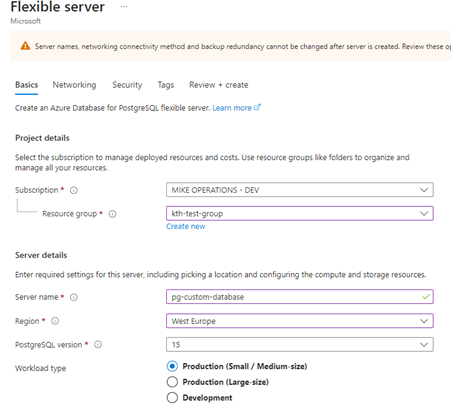
Admin username created as part of the Azure database for PostgreSQL
should be postgres.
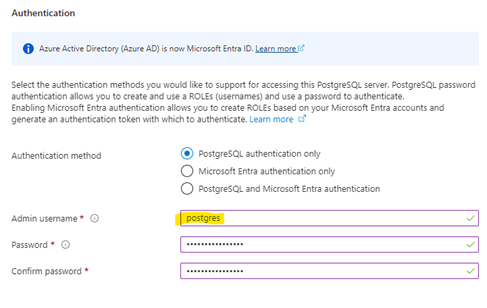
Configure the Azure Database for PostgreSQL
After creating the Azure Database for PostgreSQL, some settings should be changed to allow MIKE OPERATIONS to connect to the database.
In Connection Security of the database in the Azure Portal:
- Configure Networking
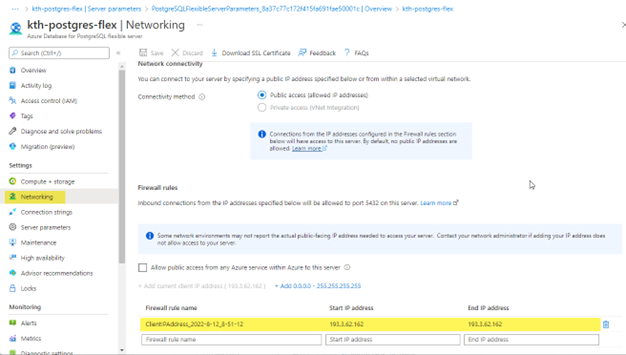
- For Public Access Databases, add a Firewall rule for clients accessing the database server.
- For Private Access (VNet integration), please refer to the Microsoft Azure documentation.
- Add allowed database extensions PostGIS (Flexible Server)
Click Save after updating the settings.
Flexible Server Server
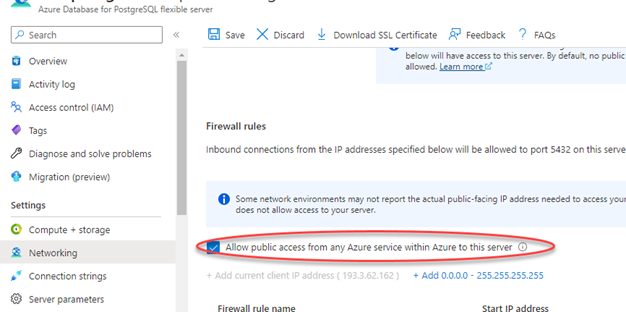
Add Firewall rule in Networking to allow specific IP addresses to access the server.
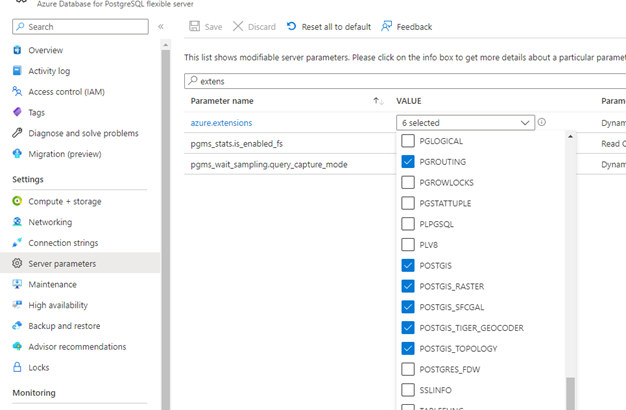
Select server extension PGROUTING and extensions for POSTGIS by
selecting the five POSTGIS extensions, setting on the server parameter
azure_extensions.
Enable all GDAL drivers for POSTGIS by setting the postgis.gdal_enabled_drivers to ENABLE_ALL.
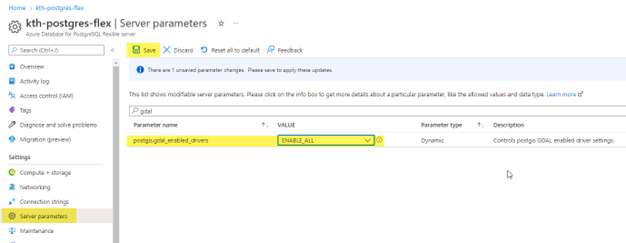
Click save to save the parameter settings.
Info
Allow access to Azure Services or configure a Virtual Network for database access in case the MIKE Cloud Job Service Provider is used for running MIKE OPERATIONS jobs on Azure using containers.
Single Server (obsolete)
Warning
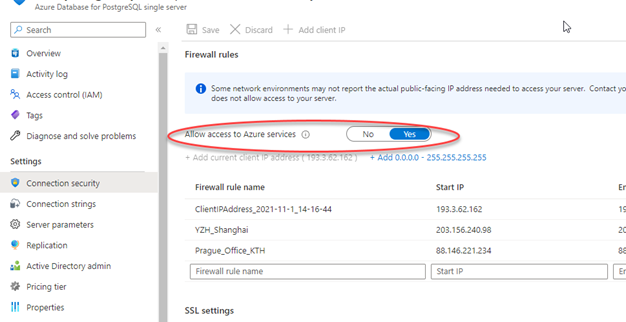
Note that Microsoft has retired Single Server. This also means that Single server is not supported from MIKE OPERATIONS 2023.2.
Allow access to Azure Services or configure a Virtual Network for database access in case the MIKE Cloud Job Service Provider is used.
Connect to the Azure Database service
Find database host name username and port connection strings on the resource on the Azure Portal.

Use the connection information of the Azure database server in the Database Manager Utility or when making a new connection setup in MIKE OPERATIONS.

Note
Note that for Azure Database for PostgreSQL Flexible server, use the user postgres (without @<servername>).
Info
PostgreSQL Database tools should be installed on the client using the Database Manager Utility.
Make sure that the Database tools Folder on the client matches the version of PostgreSQL service on Azure.


As stated, Mesh is not supported for Azure Database for PostgreSQL.
The result is that some errors will be displayed when creating a database as scripts are not allowed to import Mesh database functions required for Mesh support.
