Source Adapter
This adapter enables use of eWater Source models within the MIKE Workbench.
About Source
eWater Source is developed in response to water scarcity, Source has become the adopted tool for managing Australia’s scarce eWater Source and highly variable water resources, making it a crucial tool for climate change adaptation.
Underpinned by world-class science and technical innovation, Source has been applied and validated by water managers extensively in a wide range of real-world water use situations, both in Australia and internationally.
Source enables you to find the balance between agriculture, industry and growing urban demand while protecting the environment.
It is a nationally consistent platform; with planning, operations and forecasting modes. By integrating water resource assessment and policy, Source can produce water accounts, determine water allocations and manage rivers according to agreements and rules. Source provides a consistent repeatable framework for evidence-based decision making.
Source has been built collaboratively, in partnership with governments, industry and research organisations.
As Australia’s National Hydrological Modelling Platform, Source is:
- based on modern tools and the best available research.
- relevant for all aspects of water quantity, quality and environmental management.
- suitable for all climates and environments.
- adaptable and readily updateable to include new policy, knowledge or management approaches.
- flexible and able to link to new and existing models and other information systems.
- supported through documented methods and guidelines and a community of practice.
All Australian government water management agencies use Source, and it is increasingly being adopted by water corporations and authorities, as well as the private sector. Through Australian aid initiatives and direct engagement, Source is also being used internationally.
Please refer to eWater Source for more information.
Prerequisites
The configuration and execution of a Source models in MIKE OPERATIONS using this adapter will require
- A eWater Source installation and license.
- That the Source model has been successfully executed.
Note
Note that eWater Source only runs when using number settings with decimal points.
Source model setup
No specific configuration of a Source model setup has to be followed in order to register it into the MIKE Workbench. The Source model setup needs to run successfully within Source and the adapter assumes that all files and plugins related to the registered Source model is installed.
Source organizes model runs in scenarios. The adapter registers all information related to the selected scenario,
Model Object Types
The table below shows how the Source model objects are translated within the MIKE Workbench.
| Object in Source | Workbench Model Object Type | Model Object Info |
|---|---|---|
| Link | Link | |
| Confluence | Confluence | |
| Gauge | Gauge | |
| Inflow | Inflow | |
| Loss | Loss | |
| Minimum Flow Requirement | Minimum Flow Requirement | |
| Storage | Storage | |
| Supply Point | Supply Point | |
| Water User | Water User | |
| Weir | Weir |
Geo Location
To be able to draw nodes on the map, nodes must have Long (E) and Lat (N) specified in the Source model for every node before model registration.
Model registration
The Source model should be registered from within the Scenario Explorer of the MIKE Workbench.
The below screens show how the registration could look like.
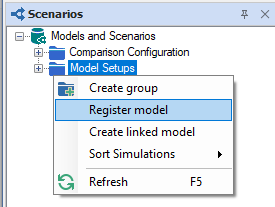
When registering a model, a new entry for the Source model will appear.
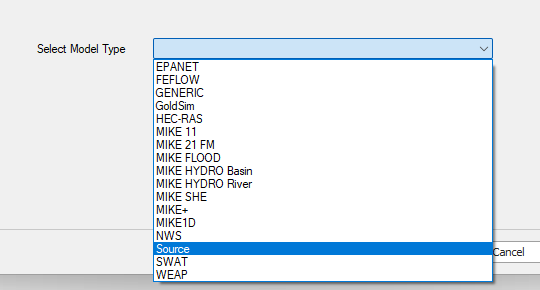
When selecting model type Source, the Model register wizard will display a dialog where the necessary Source model information can be specified.
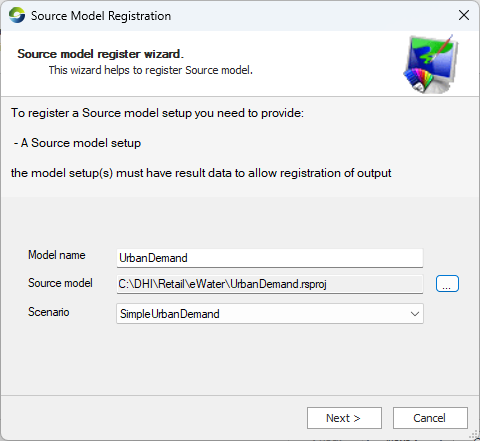
Model registration wizard (Page 1) - Source model Information
On the first page of the model registration wizard, the master Source file and executable is selected.
| Field | Description |
|---|---|
| Model name | Name of the model when it has been registered in MIKE Workbench. |
| Source model | The Source project file. |
| Scenario | Select the Source scenario to register from the drop down. |
Click Next to continue.
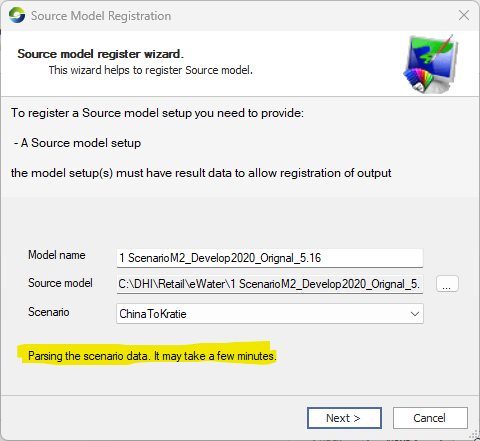
Parsing the model could take a few minutes for large models.
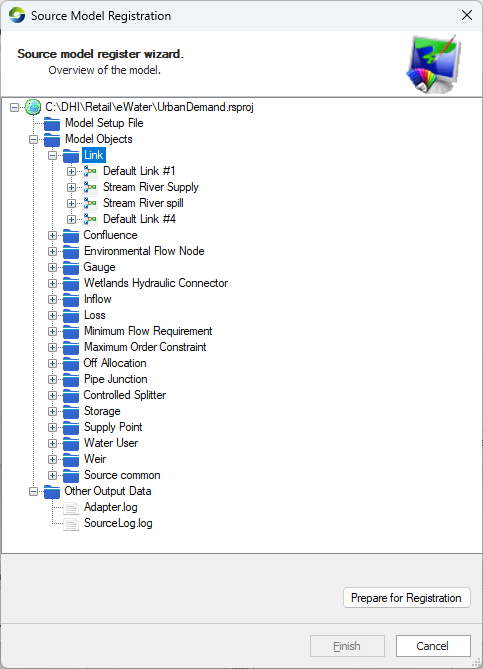
Review the parsed scenario and click Prepare for Registration.
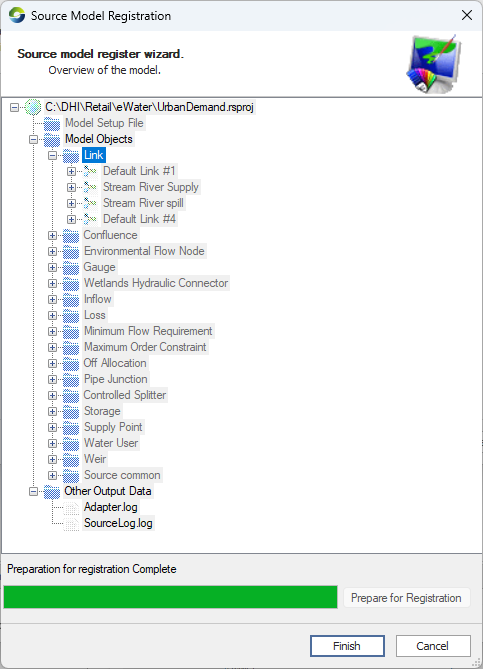
Click Finish to accept the parsed model.
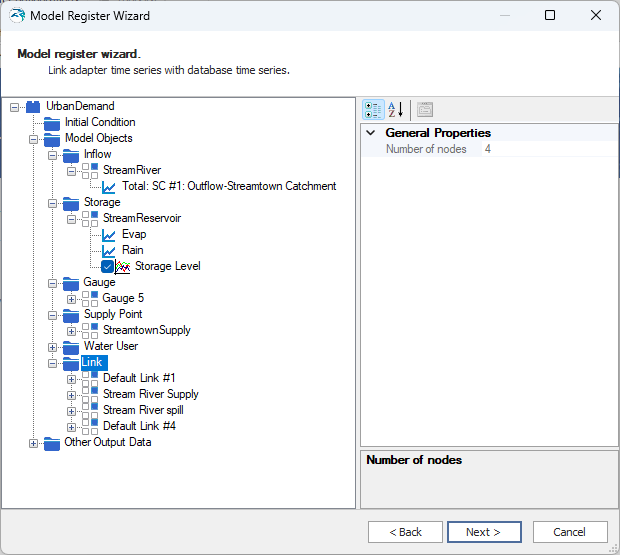
The model parsing is now complete.
The model wizard now allows you to change the model setup name and projection used.
Click Next.
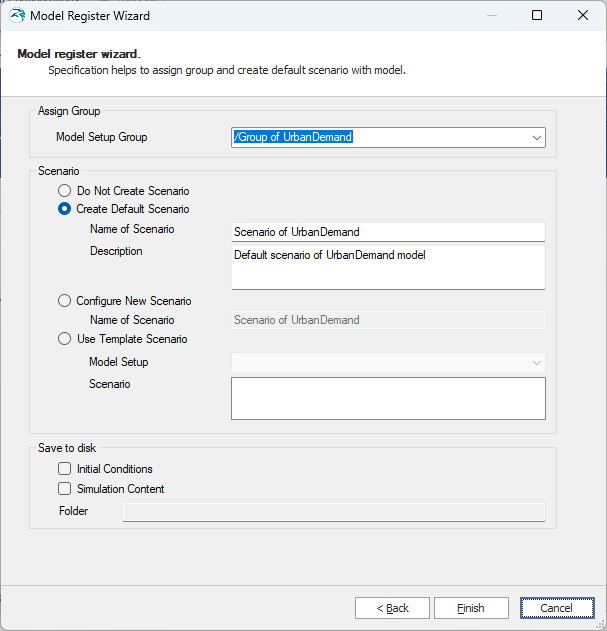
Specify the scenario name and configure the scenario using one of the following options:
- Do Not Create a Scenario
No scenario will be created. Note that scenarios can be created at a later stage. - Create Defualt Scenario
A default (empty) scenario will be created. - Configure new Scenario
Creates a new scenario using the model registration wizard. - Use Template Scenario
Creates a new scenario based on an existing scenario.
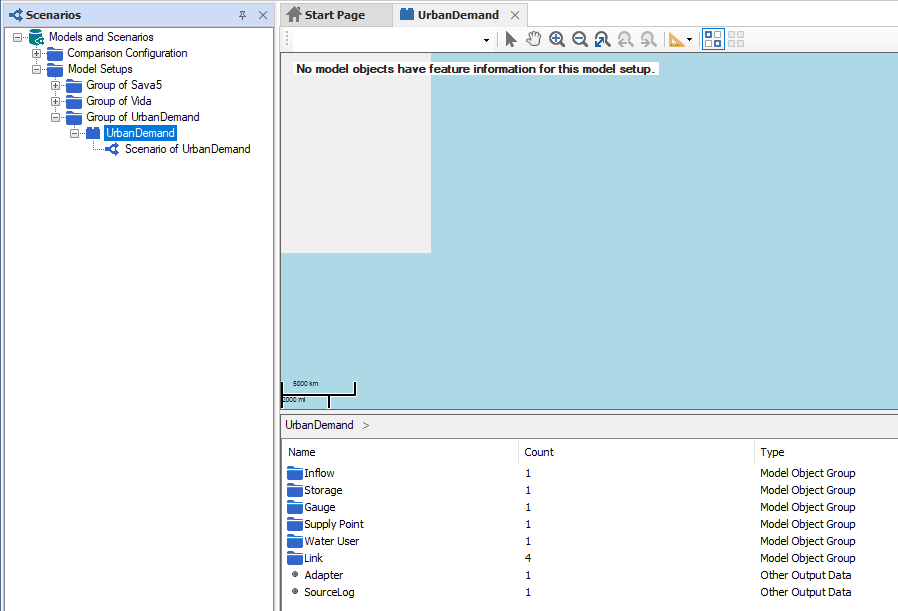
After registration, the Source model can be opened from the Scenario Explorer.