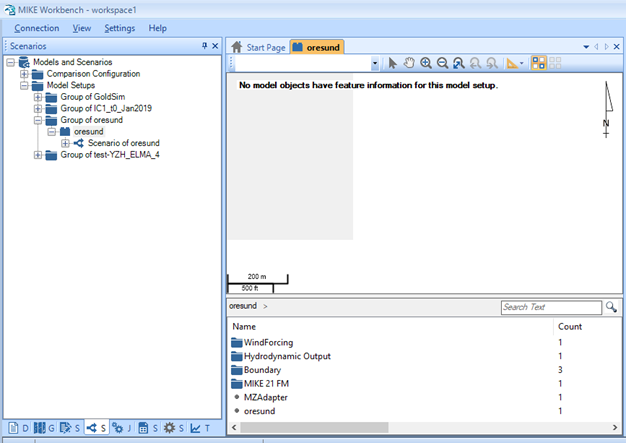
MIKE 21 FM Adapter
The MIKE 21 FM adapter enables use of MIKE 21 FM model setups within MIKE WORKBENCH.
The adaptor supports the following models:
- MIKE 21 FM
- MIKE 3 FM
The flow model FM is a comprehensive modelling system for two- and three-dimensional water modelling. The 2D and 3D models carry the same name as the classic DHI model versions MIKE 21 and MIKE 3 with an FM added referring to the type of grid - Flexible Mesh.
Limitations
- Files of a model setup are written into zip files into the database without initial conditions and dfsu files
- Simulation results are not written into the database as with other adapters. Simulation results are saved into a zip files saved to a folder on disk.
Model objects
The adapter supports the following model object types.
- Boundary Conditions
- Name
- Code
- Input Time Series
- ECO Lab output
- Name
- ECO Lab source
- Name
- Hydro Dynamic Output
- Name
- Hydro Dynamic Source
- Name
- Mud Transport Output
- Name
- Particle Tracking Output
- Name
- Sand Transport Output
- Name
- Transport Output
- Name
- Wind Forcing
- Name
Model Registration
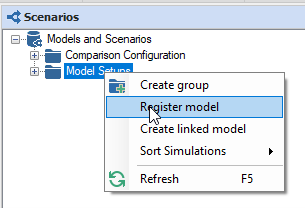
To register a MIKE 21 FM model, right click the Model Setups node in the Scenario Explorer and select Register model.
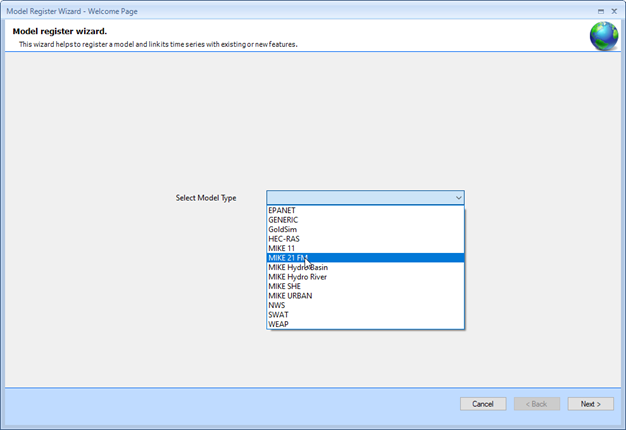
Select MIKE 21 FM and click Next.
Select a model file and specify a Model name.
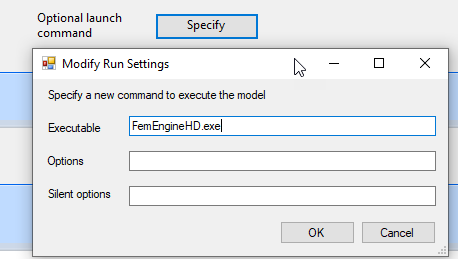
An optional launch command for running the model can be specified.
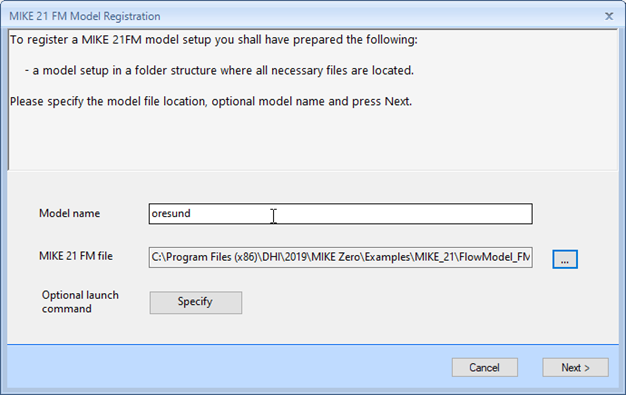
If no optional launch command is specified, the adapter runs the MIKE 21 FM engine using the FemEngineHD.exe without parameters.
A warning will occur if files with equidistant time axis is being used by the model.
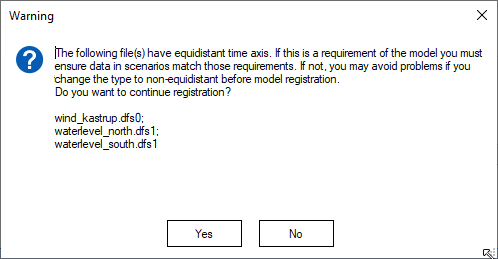
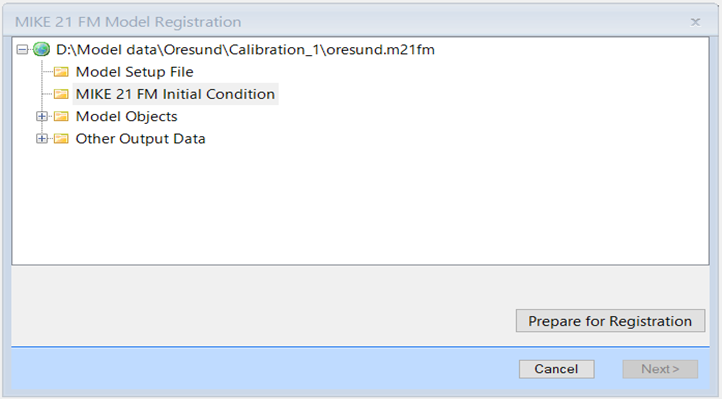
Click Yes and the model registration wizard will parse the model and display model objects found.
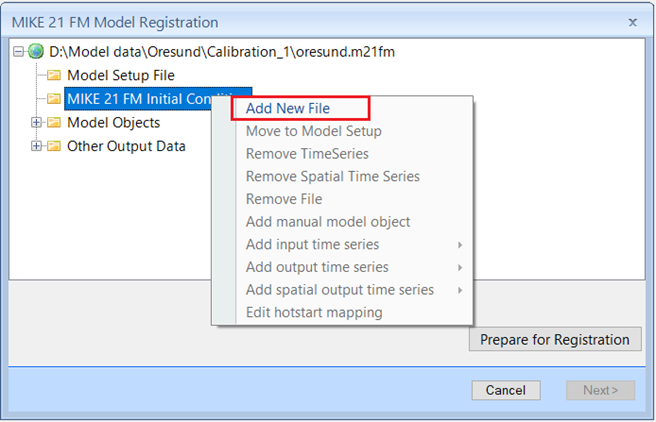
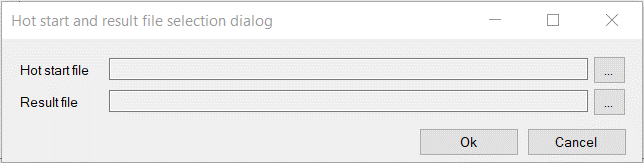
Add a new initial condition by clicking the right-click menu Add New File.
The form Hot start and result file selection dialog shows and the user can select the hot start file and result file for the initial condition.
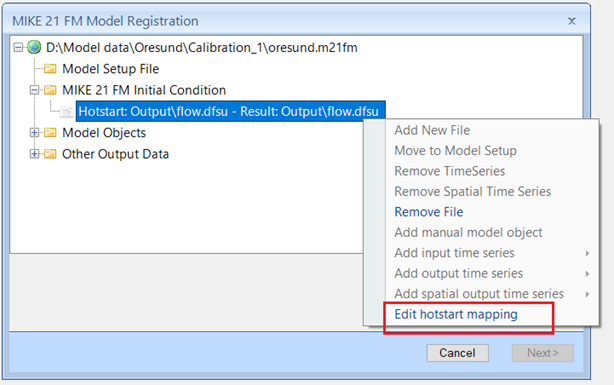
Edit the selected initial condition by clicking the right-click menu Edit hotstart mapping.
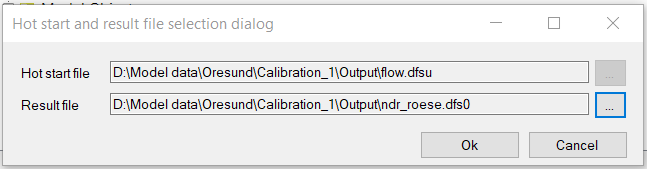
It shows the same form as for Add New File, but pre-filled will be the current mapping. The user can then specify a new result file if needed. But it should not be possible to edit the hot start file.
Click Ok and the selected initial condition changes.
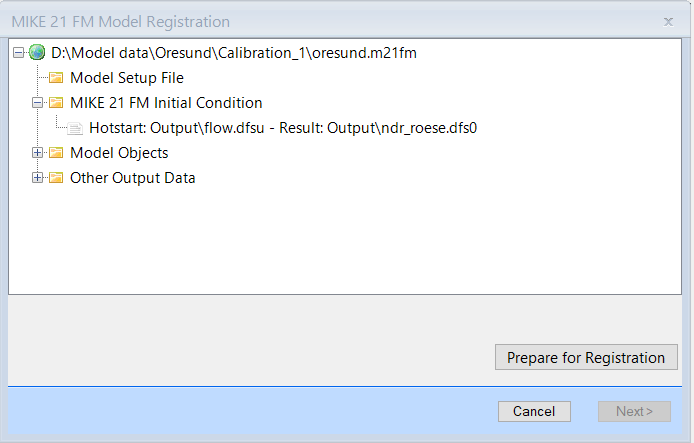
Verify the model objects and click Prepare for Registration.
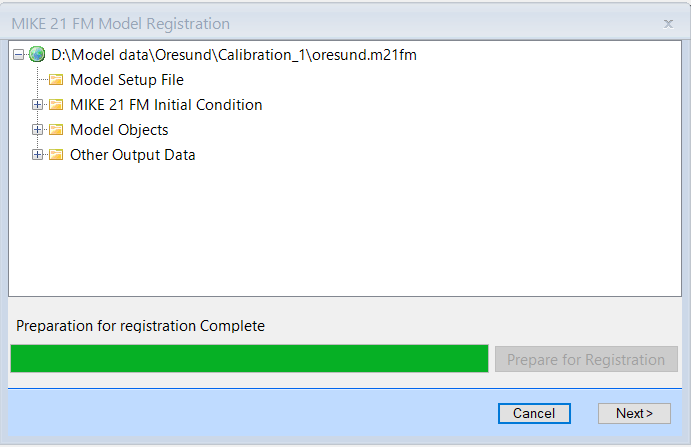
Click Next.
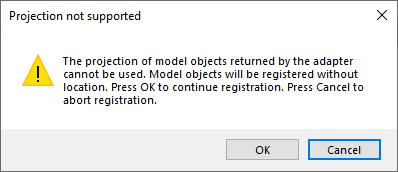
If the projection used by the model is not supported by the GIS manager of MIKE WORKBENCH, the information dialog above will be shown.
Click OK.
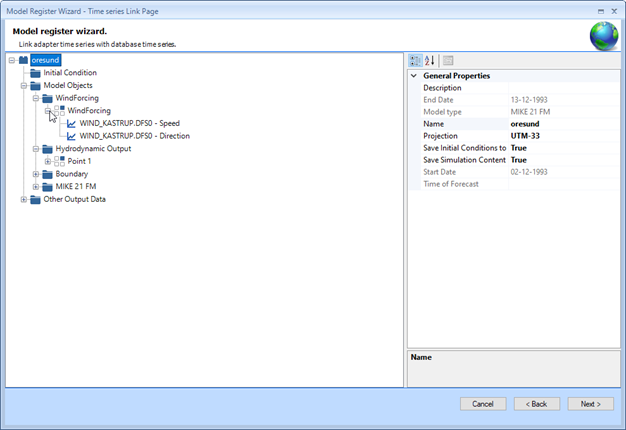
Click Next.
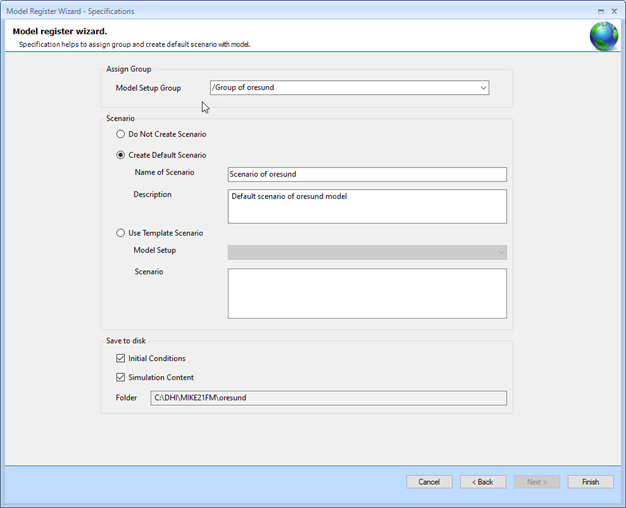
Specify a name of the model and the model group.
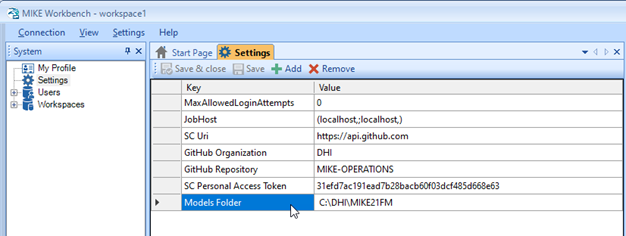
Folder is a read only field. The folder made from the root folder, shared by all models of the database workspace (connection), found in the Settings in the System Explorer as Models Folder.
This folder is used for simulation results.
Click Finish to complete the registration.
The model setup is now available in the scenario explorer in MIKE WORKBENCH.