FEFLOW Adapter
This adapter enables the use of FEFLOW models within the MIKE Workbench.
Concept
FEFLOW (Finite Element subsurface FLOW system) is a model capable of simulating, groundwater, flow, mass transfer, heat tansfer in porousmedia and fractured media.
The model uses finite element analysis to solve the groundwater flow equation of both saturated and unsaturated conditions as well as mass and heat transport, including fluid density effects and chemical kinetics for multi-component reaction systems.
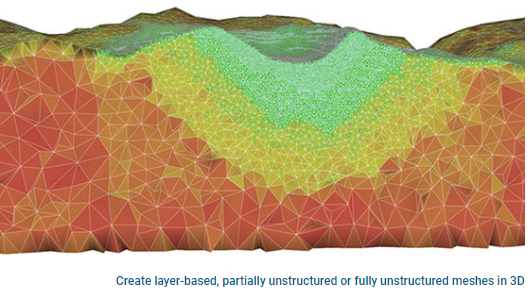
With FEFLOW, you can create layer-based, partially unstructured or fully unstructured meshes in 3D. Produce precise spatial representation of complex geological and geometrical settings such as rivers, fractures, pipes, tunnels and well locations. Deactivate and reactivate mesh elements within the model domain to account for temporal changes such as tunnel excavations or mine plans.
FEFLOW can be used in multiple domains.
- Mining
Model groundwater flow, assess seepage amounts and estimate pore pressure profiles to support open pit slope and underground mining design. Create dewatering and worst-case scenarios, assess the hydraulic performance of a tailings storage facility and simulate the fate of contaminants for EIAs. - Engineering
Assess groundwater mitigation and remediation strategies for construction and tunneling projects. Simulate geometric changes in a tunnel, earth material and other underground features involved in excavations. - Water Resources
Identify potential groundwater abstraction locations and optimize scenarios of Managed Aquifer Recharge (MAR). Analyze saltwater intrusion in freshwater resources and better understand groundwater-surface water interaction (e.g. by linking to a fully hydrodynamic river or flood model). - Water Quality
Use the built-in Kinetics Editor to account for transport processes from conservative, reactive and multi-species. Couple groundwater modelling with external models to simulate land use impacts on groundwater quality at the regional scale. Assess the impact and design of nuclear waste storage facilities. - Geotechnical Engineering
Design and implement a leakage mitigation effort and address related potential dam failure modes. Estimate spatial-temporal changes of pore pressure based on fully 3D Richards-based solution. - Industrial Porous Media
Maximize the efficiency of consumer products and develop innovative technologies and new designs. Create highly detailed 3D visualization of the infiltration and storage processes, predict absorption behavior, and optimize absorber materials with varying geometry and physical properties. - Geothermal Energy
Optimize urban shallow geothermal systems. Understand potential conflict between future and existing geothermal installations. Assess the feasibility of artificial freezing, modelling scenarios with permafrost, shallow and deep geothermal systems, and the potential thermal impact on an aquifer.
Prerequisites
The configuration and execution of FEFLOW models in MIKE Workbench using this adapter will require that FEFLOW is installed on the system.
Configuration
This section describes the formats and details of the FEFLOW adapter and FEFLOW model setups.
FEFLOW model setup
No specific configuration of a FEFLOW model setup must be followed to register it into the MIKE Workbench. It is required that the FEFLOW model setup is running successfully within FEFLOW before model registration.
When registering the model, spatial data will be stored using the WGS 84 Pseudo-Mercator projection.
Model Object Types
The table below shows how the FEFLOW model objects are translated within the MIKE Workbench. In the third column it can be seen whether the model object is geo-referenced and how it is visualized in the MIKE Workbench.
| Object in FEFLOW | Workbench Model Object Type | Parameters/Time Series | Symbol |
|---|---|---|---|
| N/A | FEFLOW | ||
| Elements | Element |  |
|
| Boundary Conditions (BC)/Fluid flow/ Hydraulic-head BC | Hydraulic-head BC |  |
|
| Boundary Conditions (BC)/Fluid flow/ Well BC | Well BC |  |
|
| Boundary Conditions (BC)/Fluid flow/ Multilayer Well | Multilayer Well |  |
|
| Node Selection | Node Selection |  |
|
| Observation Points | Observation Point |  |
|
| Boundary Conditions (BC)/Fluid flow/ Fluid-transfer BC | Fluid-transfer BC |  |
|
| Boundary Conditions (BC)/Fluid flow/ Fluid-transfer BC (Integral) | Fluid-transfer BC (Integral) | ||
| Boundary Conditions (BC)/Fluid flow/ Fluid-flux BC | Fluid-flux BC |  |
|
| Element Selection | Element Selection |  |
|
| Edge | Edge Selection | ||
| Nodal selections | Nodal Expr. Dist. Nodal Ref. Dist. |
Model registration
The following illustrates the registration process.
-
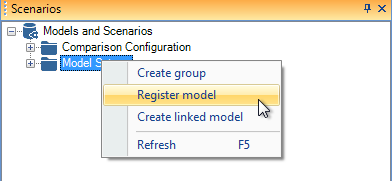
From Scenario Manager in MIKE Workbench the user selects "Register model"
-
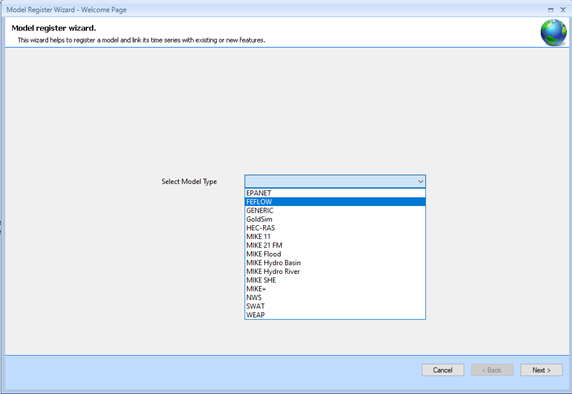
The user selects the FEFLOW model adapter
-
The user provides selects the .fem file containing the FEFLOW model information.
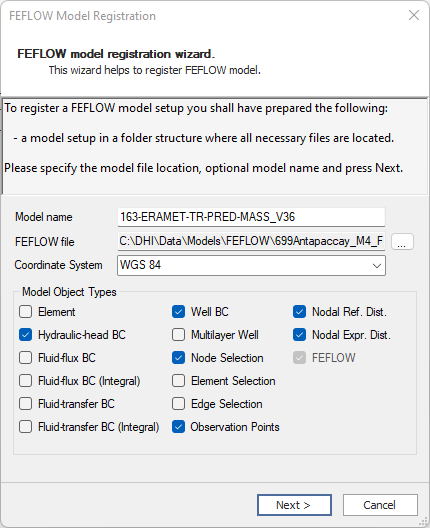
Select the coordinate system used by nodes and elements if the coordinate system was not applied to the model, or not recognized.
Please select model object types to be used on scenarios or for required for visualization. Only model object types selected will be parsed during registration.
Click next to let the FEFLOW adapter read the model information. -
Review the model and remove model objects not needed in scenarios.
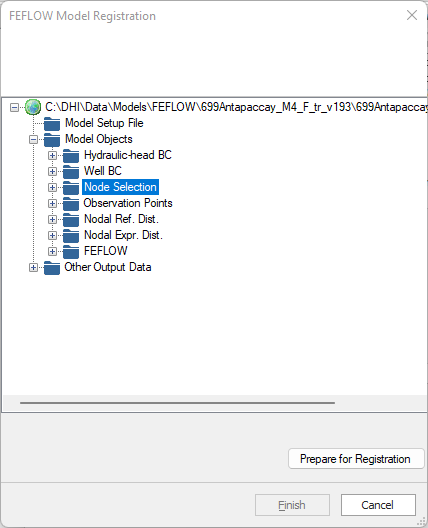
-
Remove model objects
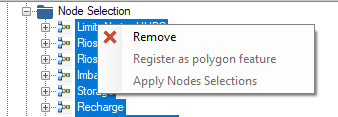
Remove model objects without interest, so that they are not part of the model objects to set input and load results from. -
Register node selections as polygons
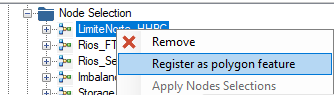
Node points of a node selection will be converted into polygons. -
Apply node selections on nodal distributions
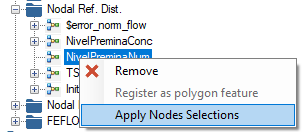
Select one or more node selections to use for setting values on nodal distributions and for reading results. When node selections have been applied, a nodal distribution will be created for each nodal selection applied. Each new nodal distribution model object will have a spatial output time series associated, providing a feature class as output. The feature class is generated from the node selection and the value ranges set on the nodal distribution.After reviewing the parsed model, click Prepare for Registration and Next.
-
-
Then the adapter presents a list of the model objects. Clicking Cancel will stop the registration process.
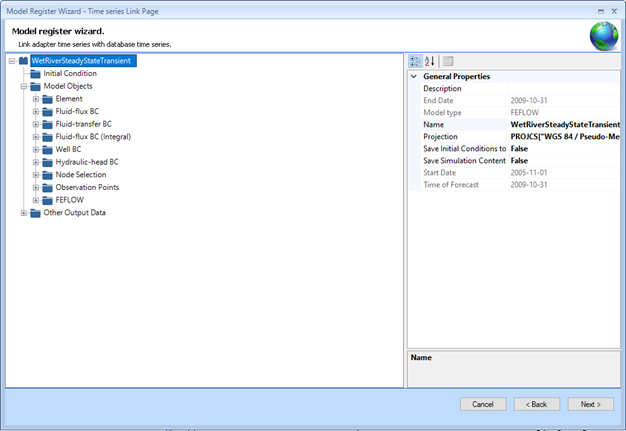
Click Next -
Finally, the adapter offers the possibility to name the default scenario on the model setup or create the scenario from a template. Clicking Cancel will stop the registration process\
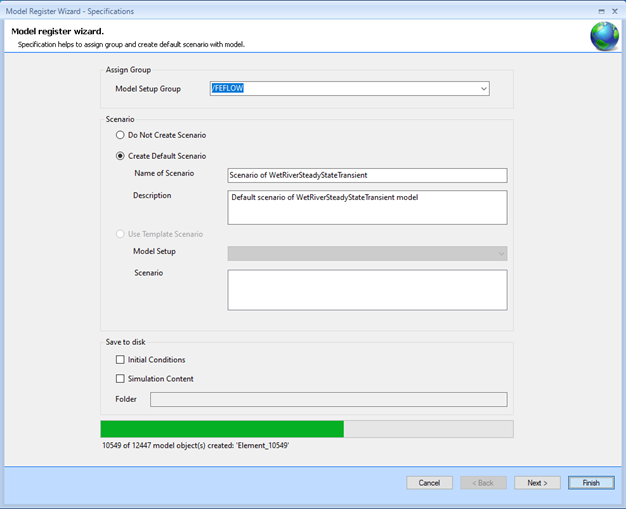
-
Clicking Finish will return the model setup information to MIKE Workbench.
-
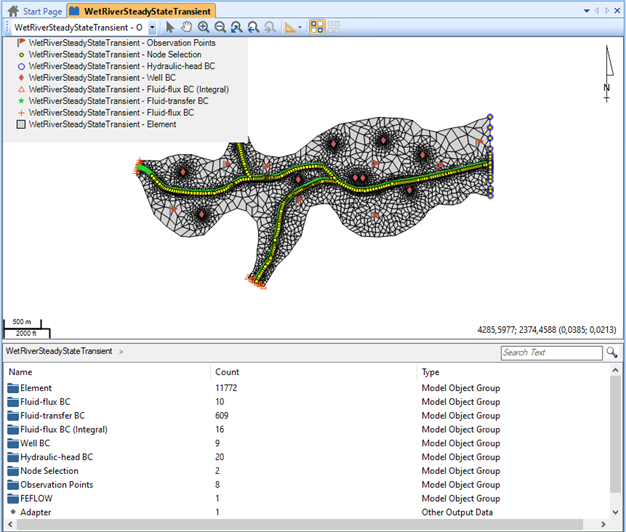
Open the model setup to view the registered model.